A professional and inviting workspace featuring a tablet displaying the “ActiveCampaign Complete Setup Guide 2026” with a marketing team collaborating in a modern office background.
Meta Description: Learn how to set up ActiveCampaign from scratch. Complete beginner’s guide with screenshots, best practices & common mistakes to avoid in 2026.
1. Introduction: Why a Proper Setup is Your Foundation for Success
Setting up a powerful tool like ActiveCampaign is much like building a house; if the foundation is weak, the entire structure will eventually lean or collapse. In the world of marketing automation, a “weak foundation” means broken email links, mismanaged contact lists, and automations that trigger at the wrong time—or not at all.
Many beginners rush into the dashboard and start sending emails immediately. This leads to common mistakes like ignoring domain authentication or failing to segment lists, which can damage your sender reputation and land your emails in the spam folder.
In this guide, you will learn exactly how to configure your account for maximum deliverability and efficiency. Whether you are a small business owner, a freelancer, or a marketing manager, this step-by-step tutorial will take you from zero to a fully functional automation engine in less than 45 minutes.
Start your free trial here: Get Started with ActiveCampaign
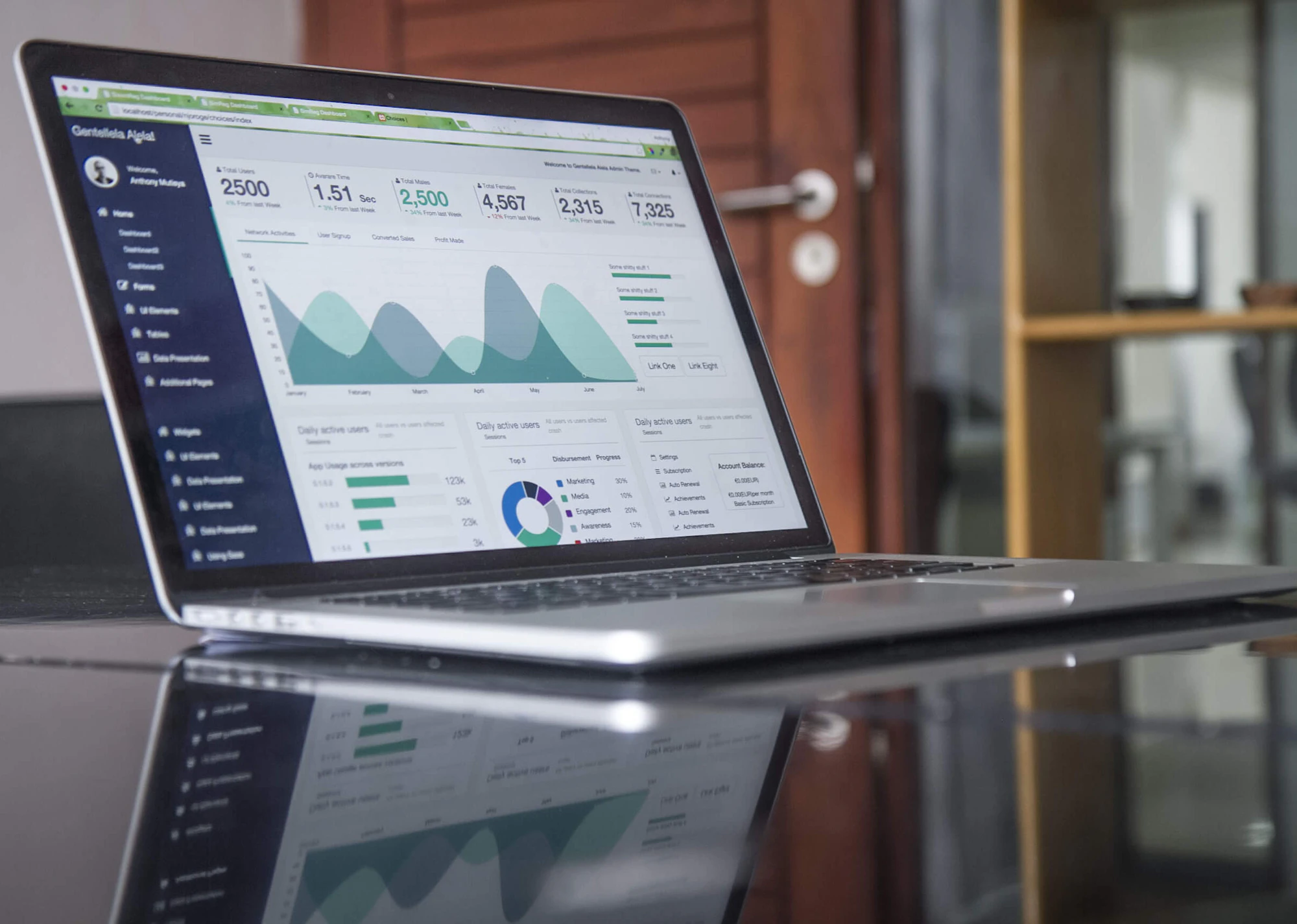
Caption: The ActiveCampaign dashboard is your command center for customer experience automation.
2. Before You Start: The Pre-Setup Checklist
Before we dive into the “how-to,” let’s ensure you have everything you need. Preparation prevents frustration. You don’t need to be a technical genius to set this up, but having these items ready will save you time.
Preparation Checklist:
- A Professional Email Address: Avoid using @gmail.com or @yahoo.com for sending. Use a domain-based email (e.g., name@yourbusiness.com).
- Website Access: You’ll eventually want to place a form on your site.
- Initial Contact List: Even if it’s just 5-10 test contacts in a CSV file.
- 30-45 Minutes of Focused Time: Turn off Slack and focus!
ActiveCampaign is a cloud-based platform, meaning it works on any modern browser. We recommend using the latest version of Google Chrome or Firefox for the smoothest experience.

Caption: Checking off your requirements beforehand ensures a seamless onboarding process.
3. Step 1: Sign Up & Account Creation
Your journey begins at the signup page. Follow these steps to create your account securely.
Creating Your Account
- Navigate to the Site: Go to the ActiveCampaign homepage.
- Click “Start Free Trial”: You’ll find this prominently in the top right corner.
- Enter Your Details: Provide your business name and email. Remember, using a business email increases your professional credibility.
- Create a Strong Password: Use at least 8 characters, including symbols and numbers.
Email Verification
Once you submit the form, check your inbox. You must click the verification link sent by ActiveCampaign. If you don’t see it within 2 minutes, check your “Promotions” or “Spam” folder. Verifying your email is critical because it confirms you own the address you’ll be sending from.
Security First
We highly recommend setting up Two-Factor Authentication (2FA) immediately. This adds an extra layer of security, ensuring that only you can access your sensitive customer data.
Try it now: Create your ActiveCampaign account
4. Step 2: The Initial Setup Wizard
Once you log in for the first time, ActiveCampaign will guide you through a “Setup Wizard.” This isn’t just a formality; your answers here help the platform customize the dashboard for your specific needs.
Key Questions You’ll Answer:
- Your Role: Are you in Sales, Marketing, or Support?
- Company Size: This helps ActiveCampaign suggest relevant templates (e.g., a solopreneur needs different tools than a 50-person agency).
- Main Goal: Do you want to “Generate Leads” or “Manage Existing Customers”?
- Industry: Selecting SaaS, E-commerce, or B2B allows the system to pre-load industry-specific automation ideas.
Don’t worry—nothing you select here is permanent. You can change your goals and industry settings in the “Settings” menu later if your business pivots.
Begin your setup: Start the ActiveCampaign Wizard
Caption: The setup wizard tailors the ActiveCampaign experience to your specific business goals.
5. Step 3: Customize Your Account Settings
Now that you’re in the dashboard, it’s time to “brand” your account. Go to the Settings gear icon in the bottom left or top right.
Essential Configurations:
- Business Address: By law (CAN-SPAM Act), you must include a physical mailing address in every marketing email. Enter this under “Addresses.”
- Timezone: This is the most forgotten step. If your timezone is wrong, your “9:00 AM” email might hit your customers’ inboxes at 3:00 AM.
- User Profile: Add a profile picture and your job title. This makes internal collaboration much easier if you add team members later.
Notification Preferences
Decide how often you want to hear from ActiveCampaign. We recommend turning on “Campaign Started” notifications so you can verify that your big announcements actually went out.
6. Step 4: Set Up Your Contact List
A CRM is only as good as the data inside it. In ActiveCampaign, “Lists” are the broad buckets where you store your contacts.
Creating Your First List
Go to Contacts > Lists > Add a List.
- Name: Give it a clear name like “Main Newsletter” or “Product Customers.”
- Description: Remind people why they are receiving this. (e.g., “You are receiving this because you signed up on our website.”)
Importing Contacts
If you have an existing list in a CSV file, use the Import tool.
- Upload the file.
- Map the fields: Ensure the “Email” column in your file matches the “Email” field in ActiveCampaign.
- Apply Tags: This is a pro tip. Add a tag like “Import_March_2026” so you always know the source of these contacts.
Custom Fields
Want to track more than just names? Create Custom Fields for things like “Favorite Product” or “Last Purchase Date.” This allows for the hyper-personalization that makes ActiveCampaign famous.
Caption: Organzing your contacts into lists and tags is the secret to high-conversion segmentation.
7. Step 5: Connect Your Email
To send personal 1-to-1 emails and track replies, you need to connect your inbox (Gmail, Outlook, etc.).
Why Connect Your Email?
When you connect your actual inbox, ActiveCampaign can track if a lead replies to your automated email. This “loops” the conversation back into the CRM, giving you a full history of the relationship.
How to Connect:
- Go to Settings > Emails.
- Click Connect Account.
- Follow the OAuth prompts for Google or Microsoft.
Troubleshooting Tip: If your connection fails, ensure that “IMAP” is enabled in your Gmail/Outlook settings.
Caption: Integrating your primary email allows for seamless communication tracking and follow-ups.
8. Step 6: Create Your First Automation (The Welcome Sequence)
This is where the magic happens. A “Welcome Automation” ensures that the moment someone joins your list, they get a friendly “Hello” without you lifting a finger.
Building the Flow:
- Click Automations > Create an Automation.
- Select a Trigger: “Subscribes to a list.”
- Add an Action: “Send an email.”
- Design the Email: Use a simple template. Keep it personal. Say, “Thanks for joining! Here is what you can expect from us.”
- Add a Delay: (Optional) Add a “Wait” step for 2 days before sending a second email.
Activate!
Your automation is not live until you click the “Active” button in the top right corner. Once it turns green, your “Welcome Robot” is officially on the job.
9. Step 7: Set Up CRM Basics (Pipelines)
If you are using the “Plus” plan or higher, you have access to the Sales CRM. This is where you track “Deals” instead of just “People.”
Creating Your Pipeline
Go to Deals > Add a Pipeline. Think of this as your sales conveyor belt. Common stages include:
- New Lead
- Contacted
- Demo Scheduled
- Proposal Sent
- Won / Lost
You can drag and drop contacts (Deals) from one stage to another, giving you a visual bird’s-eye view of your business’s financial health.
Caption: Pipelines help you visualize your sales process and identify where deals are getting stuck.
10. Step 8: Integrations & Connecting Your Tech Stack
ActiveCampaign doesn’t live in a bubble. It needs to talk to your other tools to be truly effective.
Essential Integrations:
- Zapier: The “Swiss Army Knife” that connects ActiveCampaign to 5,000+ other apps.
- Shopify/WooCommerce: For e-commerce owners to track purchases and recover abandoned carts.
- Calendly: To automatically create a “Deal” when someone books a meeting with you.
To add these, go to Settings > Integrations. Most connections only take 2-3 clicks to authorize.

Caption: Connecting your favorite tools transforms ActiveCampaign into the “brain” of your business.
11. Step 9: Create Your First Form
To get people into your automations, you need a way to collect their information. This is where Forms come in.
Designing Your Form:
- Go to Website > Forms.
- Choose Inline Form.
- Fields: Keep it simple. Ask for “First Name” and “Email.” Every extra field you add decreases the chance of someone signing up.
- Action: Ensure the “On Submit” action is set to “Subscribe to List” (The list you created in Step 4).
Once finished, copy the Embed Code and paste it onto your website’s sidebar or footer.
Caption: Professional forms are the gateway to building a high-quality subscriber list.
12. Best Practices & Expert Tips
Now that you are set up, let’s look at how to maintain a healthy account.
The “Golden Rules” of ActiveCampaign:
- Never Buy Lists: Only send to people who have explicitly opted in. Buying lists will get your account banned.
- Use Merge Tags: Instead of “Dear Customer,” use
[FIRST_NAME]. It’s a small change that drastically increases engagement. - Test on Mobile: Over 50% of your users will read your emails on a phone. Use the “Mobile Preview” feature in the email designer.
- Clean Your List: Every 6 months, remove people who haven’t opened an email. It keeps your deliverability high.
TABLE 2 – FEATURES CHECKLIST
Feature Step Difficulty Account setup Step 1 Very easy Contact list Step 4 Easy Email integration Step 5 Easy First automation Step 6 Medium CRM setup Step 7 Medium Integrations Step 8 Medium Forms Step 9 Medium

Caption: Following best practices from Day 1 ensures long-term marketing success and high ROI.
13. Troubleshooting & Getting Help
Even with a guide, you might run into a hiccup. Here is what to do:
Common Issues:
- Email not sending? Check if your automation is “Active.”
- Form not showing on your site? Clear your website’s cache.
- Contacts not appearing? Double-check your list import mapping.
Support Resources:
ActiveCampaign offers excellent support. You can access Live Chat directly from the dashboard, search their Knowledge Base, or watch hundreds of Video Tutorials on their YouTube channel.
Caption: ActiveCampaign provides world-class support to help you overcome any technical hurdles.
14. Next Steps After Setup
Congratulations! You’ve built the engine. Now it’s time to drive.
Your Growth Roadmap:
- Week 1: Build a 3-part “Educational Email” sequence.
- Week 2: Set up Site Tracking to see which pages your subscribers visit.
- Month 1: Experiment with Lead Scoring to find your “hottest” prospects automatically.
TABLE 1 – SETUP TIMELINE
When What to Do Time Needed Day 1 Basic setup & list creation 30-45 minutes Day 2-3 Connect integrations 1-2 hours Week 1 Launch first automation 2-3 hours Month 1 Optimize and scale 4-5 hours
15. FAQ – Frequently Asked Questions
Q: How long does the free trial last?
A: It lasts for 14 days and gives you access to almost all features so you can truly test the platform.
Q: Can I change my sender email later?
A: Yes, you can add and verify multiple “From” email addresses in your settings.
Q: Is it hard to move from Mailchimp?
A: Not at all. ActiveCampaign has a dedicated Migration Tool that helps you import your contacts and tags in minutes.
Q: Do I need to know how to code to use the forms?
A: No. It’s a simple copy-paste of a code snippet, just like a YouTube video embed.
Q: How do I cancel if I don’t like it?
A: You can cancel directly in the billing settings. There are no long-term contracts for the monthly plans.
16. Conclusion: Happy Automating!
You have officially moved from “Beginner” to “ActiveCampaign User.” By following this guide, you’ve ensured that your account is secure, your emails are tracking, and your first automation is working hard behind the scenes.
The most important advice we can give you is this: Don’t wait for perfection. Start with a simple welcome email and grow from there. The power of ActiveCampaign is its scalability; it will grow as your business grows.
Ready to see the results?
- Monitor your open rates.
- Track your link clicks.
- Watch your deals move through the pipeline.
- Celebrate your first automated sale!
Start your journey today: Get Started with ActiveCampaign
Caption: Your journey to automated business growth starts with this single, well-configured setup.